Nover supports Markdown for formatting text in your notes, allowing you to add style and structure with simple punctuation marks. For instance, to make a word bold, surround it with double asterisks: **bold**.
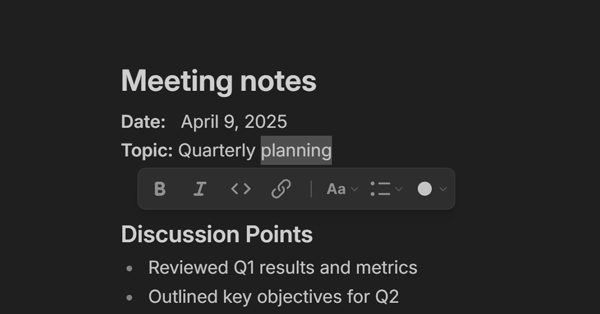
You can also apply basic styling with a toolbar menu, which will pop up after you highlight a text.
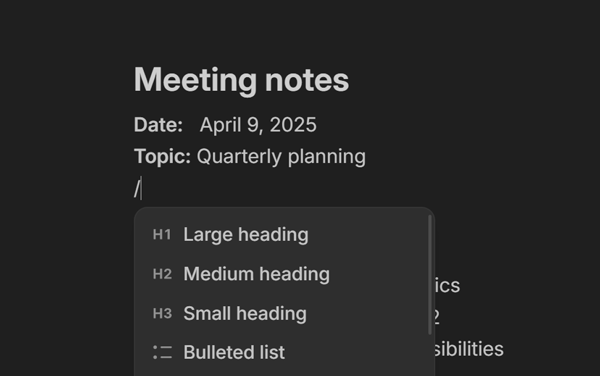
Or use the slash menu by typing /.
Supported formatting
Here’s an overview of all styles you can apply alongside markdown syntax and the keyboard shortcuts
#thenspace- ⌘shift1
##thenspace- ⌘shift2
###thenspace- ⌘shift3
- Bulleted list
- ...
- ...
-,*or+thenspace- ⌘shift8
- Numbered list
- ...
- ...
1.thenspace- ⌘shift7
- Todo list
- ...
- ...
[]thenspace[x]will create a checked todo- ⌘shift6
- ⌘enterwill check/uncheck todo
Quote
>thenspace- ⌘shift>
Code block```or```js(to specify language) thenspace- ⌘shifte
- ⌘shift9
Regular text
- ⌘⌥0
**text**or__text__- ⌘b
*text*or_text_- ⌘i
~~text~~- ⌘s
Code- `text`
- ⌘e
==text==- ⌘shifth
- Hold Cmdshiftand presshto cycle through highlight colors
Gray text
- ⌘shiftg
[Link](https://example.com)- ⌘kto insert a link
- ⌥clickto edit a link
- Links are applied automatically while you type or when pasted
Divider:
---- Cmdshiftd
Helpful commands
- ⌘z/⌘yto undo/redo typing
- ⌘↑/⌘↓to toggle between small text, regular text, and headings
- tab/shiftTabto increase/decrease indentation of lists. On mobile devices, you can swipe left or right on a list item
Read more in Keyboard shortcuts
Smart typography
Nover will automatically transform common text patterns while you type:
Symbols and arrows:
--→—emdash<-→←left arrow->→→right arrow
Quotes:
"→“double typographic quotes'→‘single typographic quotes<<→«left guillemets>>→»left guillemets
Trademarks and signs:
(c)→©copyright(r)→®registered trademark(tm)→™trademark(sm)→℠service mark
Fractions and math:
1/2→½one half1/4→¼one quarter3/4→¾three quarters+/-→±plus/minus!=→≠not equal2*3or2x3→2×3multiplication^2→²superscript two^3→³superscript three
Smart wrapping
Quickly wrap your text with symbols and formatting marks. Just select any text and press a symbol key — Nover will automatically wrap your selection with matching pairs. For example:
- Selecting a
textand pressing(results in(text) - Selecting a
textand pressing*results in*text*
Supported symbols:
- Quotes:
',",« - Brackets:
(,[,{,< - Markdown:
`,*,_,~,=